
On April 28, 2026, Anthropic made a Blender connector officially available for Claude AI as part of a broader launch of nine creative tool integrations. The connector itself is the open-source blender-mcp project, a third-party integration created by Siddharth Ahuja and not made by Blender or Anthropic. It is a direct bridge between natural language and Blender's full Python API, built on the Model Context Protocol (MCP), enabling prompt-assisted 3D modeling, scene debugging, and batch automation.
For 3D artists, game developers, and architects, this means you can now describe a scene in plain English and watch Claude build it in Blender. For developers, it opens up scriptable 3D pipelines controlled entirely through conversation. Alongside the launch, Anthropic also made a donation to support Blender's ongoing Python API development.
This guide covers everything you need to know: what the connector can do, how to set it up, real workflow examples with image illustrations, and how to integrate it into production 3D pipelines.
📋 What This Guide Covers
- What the Claude Blender Connector Actually Does
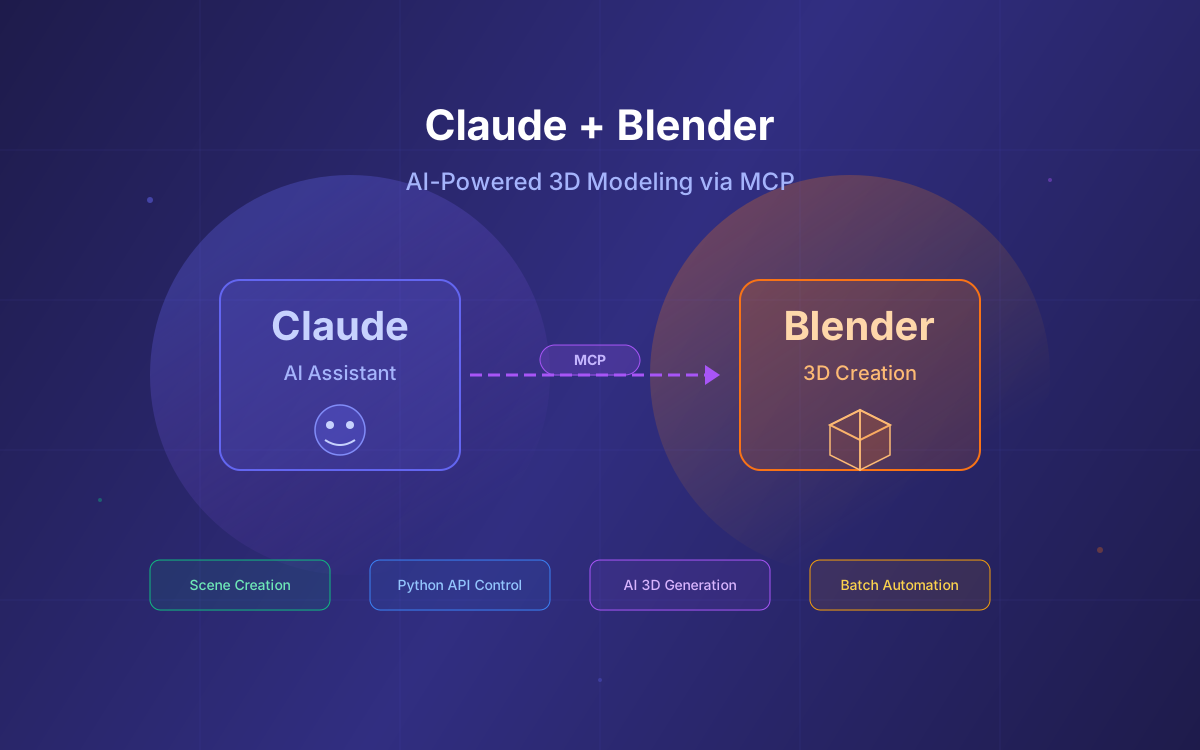
- How It Works: MCP Architecture
- Installation & Setup Guide
- Core Capabilities & Tools
- Workflow Examples with Visual Results
- AI-Generated 3D Models: Hyper3D & Hunyuan3D
- Poly Haven & Sketchfab Integration
- Production Pipeline Use Cases
- Limitations & Best Practices
- Why Lushbinary for AI-Powered 3D Workflows
1What the Claude Blender Connector Actually Does
The Blender connector provides a natural-language interface to Blender's Python API. Rather than replacing Blender's UI, it augments it — Claude becomes an intelligent assistant that can read your scene, write scripts, create objects, apply materials, and execute complex multi-step operations on command.
According to Anthropic's official announcement, 3D artists can use the connector to:
- Analyze and debug entire Blender scenes — Claude can inspect object hierarchies, modifier stacks, material nodes, and lighting setups
- Build custom scripts that batch-apply changes across objects in a scene
- Add new tools directly to Blender's interface using Blender's Python API
- Create, modify, and delete 3D objects through natural language instructions
- Apply and modify materials including PBR setups, procedural textures, and color adjustments
- Execute arbitrary Python code within Blender for advanced automation
🔑 Key Distinction
The connector is the community-built, open-source blender-mcp project (MIT licensed, by Siddharth Ahuja), not software written by Anthropic or the Blender Foundation. Its own README states plainly: "This is a third-party integration and not made by Blender." What changed on April 28, 2026 is that Anthropic listed it as an official Claude connector and made a donation to support Blender's Python API development. Note that Blender elected to take that contribution as a one-time donation rather than a Development Fund membership.
2How It Works: MCP Architecture
The connector is built on the Model Context Protocol (MCP), Anthropic's open standard for connecting AI models to external tools and data sources. The architecture has two components that communicate over a TCP socket:
The communication protocol uses JSON objects over TCP sockets. Commands are sent with a type and optional params, and responses return a status with a result or error message. This lightweight approach means near-instant response times for most operations.
3Installation & Setup Guide
Setting up the Blender MCP connector requires three components: the uv package manager, the MCP server configuration in your AI client, and the Blender addon. Here's the step-by-step process:
Prerequisites
- Blender 3.0+ (recommended: Blender 4.5 LTS, released July 15, 2025)
- Python 3.10+
- uv package manager — install via
brew install uvon macOS or see the official installation guide
Step 1: Configure the MCP Server
Add the Blender MCP server to your Claude Desktop configuration. Go to Claude > Settings > Developer > Edit Config and add:
{
  "mcpServers": {
    "blender": {
      "command": "uvx",
      "args": ["blender-mcp"]
    }
  }
}
For Kiro or Cursor, add the same configuration to your .kiro/settings/mcp.json or .cursor/mcp.json file respectively.
Step 2: Install the Blender Addon
- Download
addon.pyfrom the blender-mcp GitHub repository - Open Blender > Edit > Preferences > Add-ons
- Click "Install..." and select the
addon.pyfile - Enable the addon by checking "Interface: Blender MCP"
Step 3: Connect
- In Blender, open the 3D View sidebar (press
Nif hidden) - Find the "BlenderMCP" tab
- Optionally enable Poly Haven for asset downloads
- Click "Connect to Claude"
⚠️ Important
Only run one instance of the MCP server at a time. If you have it running in Claude Desktop, don't also run it in Cursor or Kiro simultaneously. The socket connection on port 9876 can only handle one client.
4Core Capabilities & Tools
The Blender MCP connector (v1.5.6, the latest as of April 2026) exposes a rich set of tools that Claude can invoke. Here's what's available:
| Capability | What Claude Can Do |
|---|---|
| Scene Inspection | Get full scene hierarchy, object properties, modifier stacks, material nodes |
| Object Creation | Create primitives (cube, sphere, cylinder, torus, etc.), set transforms, duplicate, delete |
| Materials & Shading | Apply PBR materials, modify colors, create procedural textures, adjust shader nodes |
| Modifiers | Add/apply subdivision, bevel, mirror, array, boolean, and other modifiers |
| Code Execution | Run arbitrary Python code in Blender's context for advanced operations |
| Viewport Screenshots | Capture viewport images to understand the current scene state visually |
| Asset Integration | Search and download models from Sketchfab, textures/HDRIs from Poly Haven |
| AI 3D Generation | Generate 3D meshes via Hyper3D Rodin and Hunyuan3D directly in Blender |
5Workflow Examples with Visual Results
Here are practical examples of what you can accomplish with Claude + Blender. Each example shows the natural language prompt and the type of result you can expect.
Example 1: Low-Poly Scene from a Single Prompt
Prompt:
"Create a low poly scene in a dungeon, with a dragon guarding a pot of gold"
Claude will create the dungeon environment with stone walls, place a stylized dragon mesh, add a gold pot with coin objects, set up moody point lighting, and position the camera for a dramatic angle — all through sequential Blender Python API calls.
Example 2: Environment with Poly Haven Assets
Prompt:
"Create a beach vibe using HDRIs, textures, and models like rocks and vegetation from Poly Haven"
Claude searches Poly Haven's API for appropriate HDRIs (sky environments), PBR sand textures, rock models, and vegetation assets. It downloads them, applies the HDRI to the world shader, creates a ground plane with sand material, and scatters rocks and plants across the scene.
Example 3: Reference Image to 3D Scene
Prompt:
"Here's a reference image of a modern living room. Recreate this scene in Blender with similar furniture layout and lighting."
Using viewport screenshots, Claude can analyze reference images you provide and attempt to recreate the scene geometry, materials, and lighting setup. It works iteratively — creating objects, checking the viewport, and adjusting until the result matches the reference.
6AI-Generated 3D Models: Hyper3D & Hunyuan3D
One of the most powerful features in recent BlenderMCP releases is the integration with AI 3D model generators. Instead of manually modeling complex objects, Claude can generate them using external AI services and import them directly into your scene.
Hyper3D Rodin
Hyper3D Rodin generates 3D meshes from text descriptions. Claude can invoke it directly:
Prompt:
"Generate a 3D model of a garden gnome through Hyper3D and place it in the scene"
Hyper3D offers a free trial with a limited number of generations per day. For production use, you can obtain API keys from hyper3d.ai and fal.ai.
Hunyuan3D (Added in the 1.5.x series)
The 1.5.x releases added Hunyuan3D support, Tencent's open-source 3D generation model. This provides an additional option for text-to-3D generation with different stylistic characteristics compared to Rodin.
7Poly Haven & Sketchfab Integration
Beyond AI-generated models, the connector integrates with two major asset libraries:
🌍 Poly Haven
- • Free CC0 HDRIs for environment lighting
- • PBR textures (wood, stone, metal, fabric)
- • 3D models (rocks, vegetation, props)
- • Toggle on/off in BlenderMCP panel
🎨 Sketchfab
- • Search millions of 3D models
- • Download and import directly
- • Filter by license type
- • Great for complex props & characters
Claude can search these libraries contextually. Ask it to "add some realistic rocks to the scene" and it will query Poly Haven, download appropriate models, and scatter them with natural-looking placement.
8Production Pipeline Use Cases
The real power of the Claude Blender connector emerges in production workflows where repetitive tasks eat up artist time. Here are concrete use cases:
Batch Operations
"Apply a 2-level subdivision surface modifier to all mesh objects in the scene, then set their shading to smooth." Claude writes and executes a Python script that iterates through every mesh object, adds the modifier, and updates the shading — a task that would take minutes manually in a complex scene.
Scene Debugging
"Why is my render coming out black?" Claude inspects the scene, checks camera placement, light objects, world shader settings, render engine configuration, and material assignments to diagnose the issue. It can identify problems like missing lights, incorrect camera clipping, or disabled render visibility.
Custom Tool Creation
"Create a Blender panel that lets me randomize the position of selected objects within a bounding box." Claude generates a complete Blender addon with UI panel, operator, and properties — adding a new tool directly to Blender's interface that persists across sessions.
Format Conversion & Pipeline Bridging
Claude can export scenes to different formats, restructure data for game engines, generate Three.js code from a Blender scene, or prepare assets for AR/VR pipelines. Ask it to "get information about the current scene and make a Three.js sketch from it" and it will analyze the geometry, materials, and lighting, then produce equivalent JavaScript code.
9Limitations & Best Practices
While the connector is powerful, it has important limitations to be aware of:
Current Limitations
- Single connection only — You can only run one MCP server instance at a time (not both Claude Desktop and Cursor)
- Complex operations need decomposition — Very complex requests should be broken into smaller steps for reliability
- Code execution risks — The
execute_blender_codetool runs arbitrary Python, which can modify or delete scene data. Always save before using it - Poly Haven can be erratic — Claude sometimes makes unexpected choices when searching for assets
- No real-time viewport streaming — Claude sees snapshots, not a live feed. It works iteratively with screenshots
- First command may fail — The initial connection sometimes drops the first command; subsequent ones work fine
Best Practices
- Save your work before starting — Especially before using code execution tools
- Be specific in prompts — "Create a red metallic sphere at position (2, 0, 1) with radius 0.5" works better than "add a ball"
- Use iterative refinement — Start with basic geometry, then ask Claude to refine materials, lighting, and details in follow-up prompts
- Leverage viewport screenshots — Ask Claude to check its work visually between steps
- Break complex scenes into phases — Environment first, then props, then lighting, then camera
- Use environment variables for remote setups:
BLENDER_HOSTandBLENDER_PORTlet you connect to Blender running on a different machine
💡 Pro Tip
For the best results, start your session by asking Claude to "get information about the current scene" so it understands what's already in your .blend file before making changes.
10Why Lushbinary for AI-Powered 3D Workflows
At Lushbinary, we've been building MCP integrations and AI-powered creative pipelines since the protocol launched. Our team has deep experience with:
- Custom MCP server development — We build bespoke connectors that integrate Claude with your specific tools and workflows
- 3D pipeline automation — From asset generation to rendering pipelines, we automate repetitive 3D production tasks
- AI agent architecture — Multi-agent systems that orchestrate complex creative workflows across tools
- Cloud rendering infrastructure — AWS-based render farms with auto-scaling for batch Blender renders
Whether you're a game studio looking to accelerate asset production, an architecture firm automating visualization workflows, or a creative agency building AI-powered 3D content pipelines — we can help you integrate Claude + Blender into your production stack.
🚀 Free Consultation
Want to integrate AI-powered 3D workflows into your production pipeline? Lushbinary specializes in MCP integrations and creative AI automation. We'll scope your project, recommend the right architecture, and give you a realistic timeline — no obligation.
❓ Frequently Asked Questions
What is the Claude Blender connector?
The Claude Blender connector is the open-source blender-mcp project created by Siddharth Ahuja. It is a third-party integration, not made by Blender or Anthropic. On April 28, 2026, Anthropic made it officially available for Claude as one of nine creative tool connectors. It lets Claude interact directly with Blender's Python API for natural-language 3D modeling, scene analysis, script generation, and batch operations.
How do I install the Blender MCP connector for Claude?
Install the uv package manager, add the blender-mcp server to your Claude Desktop config (command: uvx, args: blender-mcp), then install the addon.py file in Blender via Edit > Preferences > Add-ons. Click Connect to Claude in the BlenderMCP sidebar panel.
Does the Blender MCP work with other AI models besides Claude?
Yes. Because the connector is built on the open Model Context Protocol (MCP) standard, it is accessible to other MCP-compatible LLMs and IDEs including Cursor, VS Code, and Windsurf.
What version of Blender do I need for the MCP connector?
You need Blender 3.0 or newer. The current stable release is Blender 4.5 LTS (released July 15, 2025, supported until July 2027). Python 3.10+ is also required.
Can Claude generate 3D models from text descriptions?
Yes. Through the Blender MCP connector, Claude can create 3D objects, apply materials, set up lighting, and compose full scenes from natural language. It also integrates with Hyper3D Rodin and Hunyuan3D for AI-generated mesh models.
📚 Sources
- Anthropic — Claude for Creative Work (April 28, 2026)
- blender-mcp on PyPI (v1.5.6)
- blender-mcp GitHub Repository
- Blender 4.5 LTS Release Notes
- Model Context Protocol Official Documentation
Content was rephrased for compliance with licensing restrictions. Feature details sourced from official Anthropic announcements and PyPI package documentation as of April 2026. Capabilities and pricing may change — always verify on the vendor's website.
Build AI-Powered 3D Pipelines with Lushbinary
From MCP connector development to cloud render infrastructure, we help creative teams integrate AI into their 3D production workflows.
Ready to Build Something Great?
Get a free 30-minute strategy call. We'll map out your project, timeline, and tech stack - no strings attached.
Prefer email? Reach us directly: