EmDash's plugin architecture is one of its strongest selling points — sandboxed TypeScript modules running in V8 isolates with capability-based permissions. But knowing the theory and actually building a plugin from scratch are two different things. If you've read about EmDash's capability manifest and sandbox model and want to get your hands dirty, this is the guide for you.
We'll walk through the entire local development workflow: scaffolding an EmDash site, configuring the local environment (SQLite, KV, file storage), creating a plugin project from scratch, writing lifecycle hooks, testing in the local sandbox, debugging with DevTools, and deploying to Cloudflare Workers. By the end, you'll have a working plugin running locally and a clear path to production.
This guide assumes you're comfortable with TypeScript and have basic familiarity with Cloudflare Workers concepts. If you're brand new to EmDash, start with our EmDash developer setup guide first.
📋 Table of Contents
- 1.Prerequisites & Toolchain
- 2.Scaffolding a Local EmDash Site
- 3.Understanding the Local Environment Stack
- 4.Creating Your First Plugin Project
- 5.Writing the Plugin Manifest & Capabilities
- 6.Implementing Lifecycle Hooks
- 7.Building an Admin UI Panel
- 8.Testing Plugins in the Local Sandbox
- 9.Debugging with DevTools & Logging
- 10.Deploying Your Plugin to Cloudflare
- 11.Common Pitfalls & Troubleshooting
- 12.How Lushbinary Builds EmDash Plugins
1Prerequisites & Toolchain
Before you write a single line of plugin code, you need a few things installed. EmDash's local development stack is lightweight — no Docker, no VMs, no heavy dependencies.
# Required
node --version   # v20.0.0+ (LTS recommended)
npm --version    # v10+ (ships with Node 20)

# Optional but recommended
npx wrangler --version  # v4.x for Cloudflare deployment
git --version            # for version control
Here's what each tool does in the EmDash workflow:
- Node.js 20+: EmDash is built on Astro 6, which requires Node 20 or later. The local dev server, plugin compilation, and CLI all run on Node.
- npm / pnpm: Package management. EmDash supports both. The scaffolding tool defaults to npm.
- Wrangler CLI (v4+): Cloudflare's CLI for deploying Workers, managing D1 databases, R2 buckets, and KV namespaces. You only need this when deploying to production — local development works without it.
- workerd: Cloudflare's open-source Workers runtime. EmDash bundles this automatically for local plugin sandboxing — you don't install it separately.
No Cloudflare account needed for local dev. The entire local stack — SQLite for D1, disk for R2, in-memory KV, and workerd for plugin isolation — runs without any cloud credentials. You only need a Cloudflare account when you're ready to deploy.
2Scaffolding a Local EmDash Site
The fastest way to get a working EmDash instance is the official scaffolding command. This creates a full site with the admin panel, content API, and plugin infrastructure already wired up.
# Create a new EmDash site
npm create emdash@latest my-emdash-site

# The CLI will prompt you:
# ✔ Which template? › Blog (recommended for learning)
# ✔ Use Cloudflare bindings? › Yes (local mode)
# ✔ Install dependencies? › Yes

cd my-emdash-site
After scaffolding, your project structure looks like this:
my-emdash-site/
├── astro.config.mjs       # Astro 6 configuration
├── emdash.config.ts       # EmDash CMS configuration
├── package.json
├── plugins/               # Your custom plugins go here
│   └── .gitkeep
├── public/
├── src/
│   ├── content/           # Content schemas & seed data
│   │   └── config.ts
│   ├── layouts/
│   ├── pages/
│   └── components/
├── tsconfig.json
└── wrangler.toml          # Cloudflare bindings config
The key file for plugin development is emdash.config.ts. This is where you register plugins, configure capabilities, and set up the local development environment.
// emdash.config.ts
import { defineConfig } from "emdash";

export default defineConfig({
  site: {
    name: "My EmDash Site",
    url: "http://localhost:4321",
  },
  plugins: [
    // Plugins are registered here
    // "./plugins/my-plugin",
  ],
  auth: {
    provider: "passkey",  // Default: passkey-based auth
  },
  storage: {
    // Local dev: SQLite + disk
    // Production: D1 + R2 (auto-detected from wrangler.toml)
  },
});
Start the dev server to verify everything works:
npm run dev

# Output:
# 🚀 EmDash v0.1.0 running at http://localhost:4321
# 📝 Admin panel: http://localhost:4321/admin
# 🗄️  Database: SQLite (local)
# 📦 Storage: ./uploads (local)
# 🔌 Plugins: 0 loaded
3Understanding the Local Environment Stack
One of EmDash's design goals is that local development should mirror production as closely as possible. Here's how each Cloudflare service maps to a local equivalent:
| Production (Cloudflare) | Local Development | Notes |
|---|---|---|
| D1 (SQL database) | SQLite file | Same SQL dialect — D1 is SQLite under the hood |
| R2 (object storage) | Local ./uploads directory | S3-compatible API locally via miniflare |
| Workers KV | In-memory KV (persisted to .mf/kv) | Plugin-scoped namespaces enforced locally |
| Dynamic Workers | workerd isolates | Same V8 sandbox — capabilities enforced identically |
| Durable Objects | In-memory (miniflare) | Simulated locally, same API surface |
The wrangler.toml file in your project root configures the Cloudflare bindings. For local development, you don't need to create actual D1 databases or R2 buckets — the local dev server simulates them automatically.
# wrangler.toml — used for both local dev and production
name = "my-emdash-site"
compatibility_date = "2026-04-01"

[vars]
EMDASH_SITE_NAME = "My EmDash Site"

[[d1_databases]]
binding = "DB"
database_name = "emdash-db"
database_id = "local"  # Replace with real ID for production

[[r2_buckets]]
binding = "MEDIA"
bucket_name = "emdash-media"

[[kv_namespaces]]
binding = "PLUGIN_KV"
id = "local"  # Replace with real ID for production
Key insight: Because D1 is literally SQLite under the hood, your local database is schema-identical to production. Queries that work locally will work on Cloudflare. This is a huge advantage over traditional CMS development where local MySQL/Postgres can behave differently from managed cloud databases.
4Creating Your First Plugin Project
EmDash plugins live in the plugins/ directory of your EmDash site. Each plugin is a self-contained directory with its own package.json and entry point. You can scaffold one with the CLI or create it manually.
# Option 1: Use the CLI scaffold
npx emdash plugin create my-analytics-plugin

# Option 2: Create manually
mkdir -p plugins/my-analytics-plugin
cd plugins/my-analytics-plugin
A minimal plugin project has this structure:
plugins/my-analytics-plugin/
├── package.json
├── src/
│   └── index.ts          # Plugin entry point
├── tsconfig.json
└── README.md
The package.json for a plugin is minimal:
{
  "name": "emdash-plugin-my-analytics",
  "version": "1.0.0",
  "type": "module",
  "main": "src/index.ts",
  "dependencies": {
    "emdash": "^0.1.0"
  },
  "devDependencies": {
    "typescript": "^5.7.0"
  }
}
After creating the plugin directory, register it in your site's emdash.config.ts:
// emdash.config.ts
export default defineConfig({
  // ...
  plugins: [
    "./plugins/my-analytics-plugin",
  ],
});
Hot reloading: When emdash dev is running, changes to plugin source files trigger automatic recompilation and worker restart. You don't need to manually restart the dev server after editing plugin code.
5Writing the Plugin Manifest & Capabilities
Every EmDash plugin starts with definePlugin() from the emdash/plugin SDK. The capabilities array is the most important part — it determines what APIs are available inside your plugin's sandbox. For a deep dive into the security model, see our capabilities and sandboxing guide.
Let's build a practical plugin: a page-view analytics tracker that counts views per content item and exposes a dashboard in the admin panel.
// plugins/my-analytics-plugin/src/index.ts
import { definePlugin } from "emdash/plugin";

export default definePlugin({
  name: "my-analytics-plugin",
  version: "1.0.0",
  description: "Tracks page views per content item",

  // Declare exactly what this plugin needs
  capabilities: [
    "content:read",    // Read content items to get titles/slugs
    "storage:kv",      // Store view counts in plugin-scoped KV
    "admin:ui",        // Register an admin dashboard panel
  ],

  // No network access declared = no fetch() available
  // No email:send declared = no email API available
  // No content:write declared = cannot modify content

  async onInstall({ kv, log }) {
    log.info("Analytics plugin installed");
    await kv.put("total-views", "0");
  },

  onActivate({ admin, log }) {
    log.info("Analytics plugin activated");

    admin.registerPanel({
      title: "Page Analytics",
      path: "/analytics",
      icon: "chart-bar",
    });
  },

  async onRequest({ request, kv, content }) {
    const url = new URL(request.url);

    // Track page view
    if (url.pathname === "/api/track-view") {
      const slug = url.searchParams.get("slug");
      if (!slug) {
        return new Response("Missing slug", { status: 400 });
      }

      const current = parseInt(
        (await kv.get(`views:${slug}`)) ?? "0"
      );
      await kv.put(`views:${slug}`, String(current + 1));

      const total = parseInt(
        (await kv.get("total-views")) ?? "0"
      );
      await kv.put("total-views", String(total + 1));

      return new Response(
        JSON.stringify({ slug, views: current + 1 }),
        { headers: { "Content-Type": "application/json" } }
      );
    }

    // Get analytics data for admin panel
    if (url.pathname === "/api/analytics") {
      const items = await content.list("posts");
      const analytics = await Promise.all(
        items.map(async (item) => ({
          title: item.title,
          slug: item.slug,
          views: parseInt(
            (await kv.get(`views:${item.slug}`)) ?? "0"
          ),
        }))
      );

      return new Response(JSON.stringify(analytics), {
        headers: { "Content-Type": "application/json" },
      });
    }

    return new Response("Not found", { status: 404 });
  },
});
Notice what this plugin cannot do:
- It cannot modify or delete content (no
content:write) - It cannot make outbound HTTP requests (no
network:fetch) - It cannot send emails, schedule cron jobs, or access media files
- Its KV storage is namespaced — other plugins cannot read its view counts
6Implementing Lifecycle Hooks
EmDash plugins interact with the CMS through lifecycle hooks. Each hook receives a context object containing only the APIs your plugin declared in its capabilities. Here's a practical reference with the hooks you'll use most often during development:
import { definePlugin } from "emdash/plugin";

export default definePlugin({
  name: "lifecycle-example",
  version: "1.0.0",
  capabilities: [
    "content:read",
    "content:write",
    "storage:kv",
    "admin:ui",
    "cron:schedule",
  ],

  // ── Runs once on first install ──────────────
  async onInstall({ kv, log }) {
    await kv.put("config:enabled", "true");
    log.info("Plugin installed with defaults");
  },

  // ── Runs each time plugin is activated ──────
  onActivate({ admin }) {
    admin.registerPanel({
      title: "My Plugin",
      path: "/my-plugin",
      icon: "puzzle-piece",
    });
  },

  // ── Fires after content is saved ────────────
  async onContentChange({ content, action, kv, log }) {
    if (action === "publish") {
      const count = parseInt(
        (await kv.get("publish-count")) ?? "0"
      );
      await kv.put("publish-count", String(count + 1));
      log.info(`Published: ${content.title} (#${count + 1})`);
    }
  },

  // ── Fires before content is saved ───────────
  // Return modified content or null to cancel
  onBeforeContentSave({ content, action, log }) {
    if (action === "publish" && !content.title) {
      log.warn("Blocked publish: missing title");
      return null; // Cancel the save
    }
    // Auto-trim titles
    return {
      ...content,
      title: content.title.trim(),
    };
  },

  // ── Scheduled task (requires cron:schedule) ─
  async onCron({ schedule, kv, log }) {
    const count = await kv.get("publish-count");
    log.info(`Cron check: ${count} posts published`);
  },

  // ── Handle HTTP requests to plugin routes ───
  async onRequest({ request, kv }) {
    return new Response(
      JSON.stringify({ status: "ok" }),
      { headers: { "Content-Type": "application/json" } }
    );
  },
});
The context object is the key concept here. Each hook receives only the APIs matching your declared capabilities. If you declared content:read but not content:write, the context will have content.list() and content.get() but not content.create() or content.update(). This is enforced at the V8 isolate level — not just TypeScript types.
7Building an Admin UI Panel
Plugins with the admin:ui capability can register panels in the EmDash admin interface. The admin panel renders inside an iframe sandbox, so your UI code runs isolated from the main admin app. You return HTML strings or use EmDash's lightweight component helpers.
import { definePlugin, html } from "emdash/plugin";

export default definePlugin({
  name: "analytics-dashboard",
  version: "1.0.0",
  capabilities: ["content:read", "storage:kv", "admin:ui"],

  onActivate({ admin }) {
    admin.registerPanel({
      title: "Analytics",
      path: "/analytics",
      icon: "chart-bar",

      // The render function returns HTML
      async render({ kv, content }) {
        const items = await content.list("posts");
        const rows = await Promise.all(
          items.map(async (item) => {
            const views = await kv.get(`views:${item.slug}`);
            return `
              <tr>
                <td>${item.title}</td>
                <td>${views ?? "0"}</td>
              </tr>
            `;
          })
        );

        return html`
          <div style="padding: 1rem;">
            <h2>Page View Analytics</h2>
            <table>
              <thead>
                <tr>
                  <th>Page</th>
                  <th>Views</th>
                </tr>
              </thead>
              <tbody>
                ${rows.join("")}
              </tbody>
            </table>
          </div>
        `;
      },
    });
  },
});
The admin panel renders at /admin/plugins/analytics in the EmDash admin interface. During local development, you can navigate there directly to see your panel.
Security note: Admin panels run in a sandboxed iframe. They cannot access the parent admin app's DOM, cookies, or localStorage. Communication between the panel and the admin app happens through a structured message-passing API, not direct DOM manipulation.
8Testing Plugins in the Local Sandbox
EmDash provides a local plugin testing environment powered by miniflare and workerd. This simulates the full Dynamic Workers sandbox locally, including capability enforcement, KV scoping, and isolate boundaries.
There are two ways to test plugins: integration testing via the dev server, and unit testing with the plugin test harness.
Integration Testing with the Dev Server
The simplest approach: run npm run dev and interact with your plugin through the admin panel and content API. The dev server loads plugins in the same sandbox environment as production.
# Start the dev server with verbose plugin logging
npm run dev -- --verbose

# In another terminal, test plugin API endpoints
curl http://localhost:4321/plugins/my-analytics-plugin/api/track-view?slug=hello-world

# Check KV state
curl http://localhost:4321/plugins/my-analytics-plugin/api/analytics
Unit Testing with the Plugin Test Harness
For automated testing, EmDash provides a test harness that spins up an isolated miniflare environment for your plugin. This lets you write standard test cases with Vitest or any test runner.
// plugins/my-analytics-plugin/src/index.test.ts
import { describe, it, expect } from "vitest";
import { createPluginTestEnv } from "emdash/testing";
import plugin from "./index";

describe("my-analytics-plugin", () => {
  it("tracks page views", async () => {
    const env = await createPluginTestEnv(plugin);

    // Simulate a track-view request
    const res = await env.dispatchRequest(
      "/api/track-view?slug=test-post"
    );
    const data = await res.json();

    expect(res.status).toBe(200);
    expect(data.views).toBe(1);

    // Verify KV was updated
    const stored = await env.kv.get("views:test-post");
    expect(stored).toBe("1");
  });

  it("returns analytics data", async () => {
    const env = await createPluginTestEnv(plugin, {
      // Seed test content
      content: [
        { slug: "post-1", title: "First Post" },
        { slug: "post-2", title: "Second Post" },
      ],
    });

    // Track some views
    await env.dispatchRequest("/api/track-view?slug=post-1");
    await env.dispatchRequest("/api/track-view?slug=post-1");
    await env.dispatchRequest("/api/track-view?slug=post-2");

    const res = await env.dispatchRequest("/api/analytics");
    const data = await res.json();

    expect(data).toHaveLength(2);
    expect(data[0].views).toBe(2);
    expect(data[1].views).toBe(1);
  });

  it("rejects requests without slug", async () => {
    const env = await createPluginTestEnv(plugin);
    const res = await env.dispatchRequest("/api/track-view");
    expect(res.status).toBe(400);
  });

  it("cannot access content:write APIs", async () => {
    const env = await createPluginTestEnv(plugin);
    // content.create should be undefined since we only
    // declared content:read
    expect(env.context.content.create).toBeUndefined();
  });
});
# Run plugin tests cd plugins/my-analytics-plugin npx vitest --run # Or from the site root npx emdash plugin test my-analytics-plugin
Capability enforcement in tests: The test harness enforces the same capability restrictions as production. If your plugin tries to use an API it didn't declare, the test will fail with a clear error message showing which capability is missing.
9Debugging with DevTools & Logging
Debugging sandboxed plugins requires different techniques than debugging a regular Node.js app. Since plugins run in V8 isolates (via workerd), you can't just attach a standard Node debugger. Here are the tools available:
Structured Logging
Every plugin hook receives a log object in its context. Use it instead of console.log — the structured logger includes the plugin name, timestamp, and log level in the output.
// Inside any plugin hook
async onContentChange({ content, action, log }) {
  log.info(`Content ${action}: ${content.title}`);
  log.warn("This is a warning");
  log.error("Something went wrong", { contentId: content.id });

  // Output in terminal:
  // [my-plugin] INFO  Content publish: Hello World
  // [my-plugin] WARN  This is a warning
  // [my-plugin] ERROR Something went wrong { contentId: "abc123" }
}
Chrome DevTools via --inspect
For deeper debugging, start the dev server with the --inspect flag. This exposes the workerd isolate to Chrome DevTools, letting you set breakpoints, inspect variables, and step through plugin code.
# Start with inspector enabled
npm run dev -- --inspect

# Output:
# 🔍 Inspector listening on ws://127.0.0.1:9229
# Open chrome://inspect in Chrome to connect

# Then in Chrome:
# 1. Navigate to chrome://inspect
# 2. Click "Configure..." and add 127.0.0.1:9229
# 3. Your plugin worker appears under "Remote Target"
# 4. Click "inspect" to open DevTools
Once connected, you can set breakpoints in your plugin's TypeScript source (source maps are generated automatically), inspect the context object to see which APIs are available, and watch KV operations in real time.
Capability Violation Errors
When your plugin tries to use an API it didn't declare, the error message is explicit:
// If your plugin tries to use fetch() without network:fetch
// Terminal output:
// [my-plugin] ERROR CapabilityViolation:
//   Plugin "my-analytics-plugin" attempted to use
//   "network:fetch" but it is not declared in capabilities.
//   Add "network:fetch" to your capabilities array and
//   specify allowedHostnames in the network config.

// If your plugin tries to write content without content:write
// [my-plugin] ERROR CapabilityViolation:
//   Plugin "my-analytics-plugin" attempted to use
//   "content:write" (content.create) but only
//   "content:read" is declared.
Pro tip: Start with minimal capabilities and add them as needed. The error messages tell you exactly which capability to add. This is much safer than declaring everything upfront and trimming later — you might forget to remove a capability you no longer need.
10Deploying Your Plugin to Cloudflare
Once your plugin works locally, deploying to Cloudflare involves three steps: setting up production bindings, building the plugin, and deploying the site.
Step 1: Create Production Resources
If you haven't already, create the Cloudflare resources your site needs:
# Login to Cloudflare
npx wrangler login

# Create a D1 database
npx wrangler d1 create emdash-db
# → Created database "emdash-db"
# → database_id = "xxxx-xxxx-xxxx"

# Create an R2 bucket
npx wrangler r2 bucket create emdash-media

# Create a KV namespace for plugins
npx wrangler kv namespace create PLUGIN_KV
# → id = "yyyy-yyyy-yyyy"
Step 2: Update wrangler.toml with Production IDs
# wrangler.toml — updated for production
name = "my-emdash-site"
compatibility_date = "2026-04-01"

[[d1_databases]]
binding = "DB"
database_name = "emdash-db"
database_id = "xxxx-xxxx-xxxx"  # From wrangler d1 create

[[r2_buckets]]
binding = "MEDIA"
bucket_name = "emdash-media"

[[kv_namespaces]]
binding = "PLUGIN_KV"
id = "yyyy-yyyy-yyyy"  # From wrangler kv namespace create
Step 3: Build and Deploy
# Build the site and all plugins
npm run build

# Deploy to Cloudflare Workers
npx emdash deploy
# Or use wrangler directly:
# npx wrangler deploy

# Output:
# ✅ Site deployed to https://my-emdash-site.workers.dev
# ✅ D1 migrations applied
# ✅ 1 plugin(s) deployed as Dynamic Workers
#    - my-analytics-plugin (content:read, storage:kv, admin:ui)
For standalone plugin distribution (publishing to the EmDash plugin registry), use the plugin-specific build and publish commands:
# Build the plugin as a standalone bundle
npx emdash plugin build my-analytics-plugin

# Publish to the EmDash plugin registry
npx emdash plugin publish my-analytics-plugin

# Output:
# 📦 Built: my-analytics-plugin@1.0.0
# 📋 Capabilities: content:read, storage:kv, admin:ui
# 🚀 Published to registry
Plugin code stays private. When you deploy a plugin as a Dynamic Worker, the site owner never sees your source code. They only see the capability manifest — what the plugin can do, not how it does it. This enables commercial and proprietary plugins without licensing friction. For more on this, see our plugin licensing guide.
11Common Pitfalls & Troubleshooting
After building dozens of EmDash plugins, here are the issues we see most often and how to fix them:
| Problem | Cause | Fix |
|---|---|---|
| Plugin not loading | Not registered in emdash.config.ts | Add plugin path to the plugins array |
fetch is not defined | Missing network:fetch capability | Add to capabilities + set allowedHostnames |
KV returns null after restart | In-memory KV not persisted | Run with --persist flag to save KV to .mf/kv |
| Admin panel blank | Missing admin:ui capability | Add admin:ui to capabilities array |
| TypeScript errors in plugin | Missing emdash dependency | Run npm install emdash in plugin directory |
| Network request blocked | Hostname not in allowedHostnames | Add the exact hostname to the network config |
| Plugin works locally, fails on CF | Node.js API used (e.g., Buffer, fs) | Use Web APIs only — Workers runtime doesn't have Node built-ins |
⚠️ Workers Runtime Compatibility
EmDash plugins run on the Cloudflare Workers runtime (workerd), which supports Web APIs but not Node.js built-in modules. Avoid fs, path, crypto (use Web Crypto API instead), Buffer (use Uint8Array), and process. The Workers Runtime APIs docs list everything available.
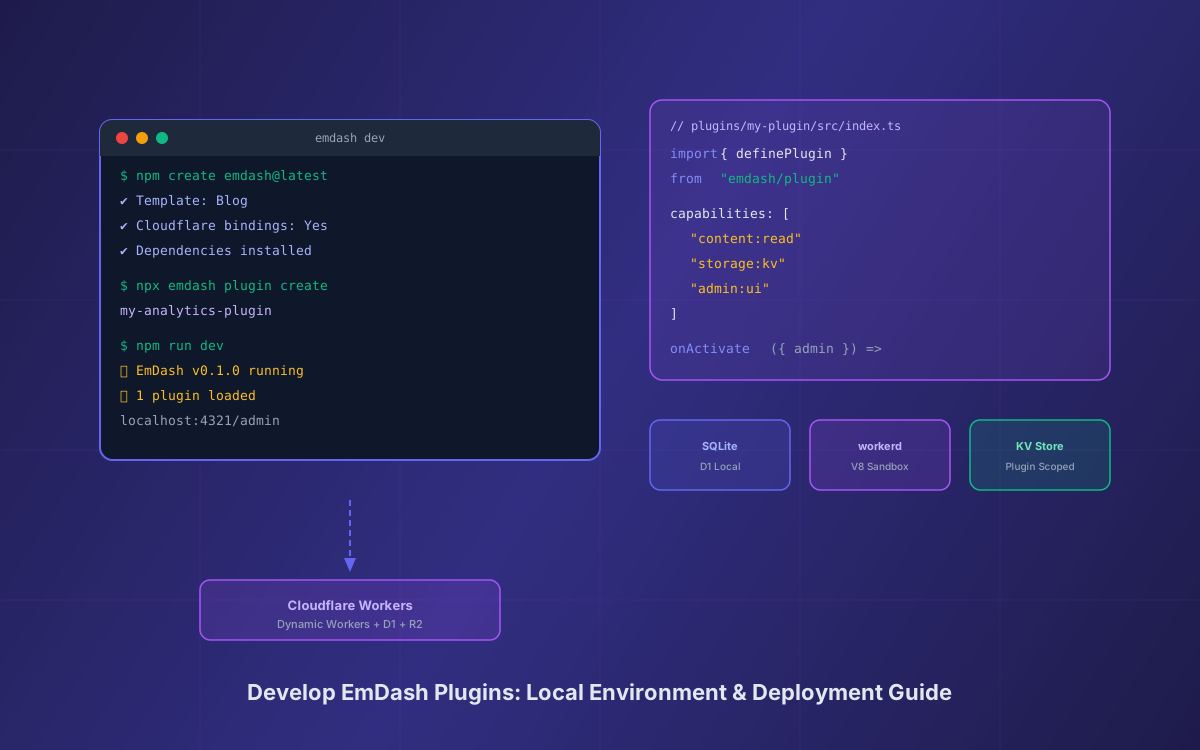
12EmDash Plugin Development Architecture
Here's how the local development environment maps to the production Cloudflare deployment:
12How Lushbinary Builds EmDash Plugins
At Lushbinary, we've been building on EmDash since the v0.1.0 preview launch. Our team has deep experience with the Cloudflare Workers ecosystem, Astro 6, and the EmDash plugin architecture. We build custom plugins for clients across e-commerce, analytics, content management, and AI-powered workflows.
What we offer:
- Custom EmDash plugin development — from concept to production deployment on Cloudflare Workers
- WordPress-to-EmDash migration — including porting custom plugin functionality to EmDash's sandboxed architecture
- EmDash theme development — Astro 6 themes with custom content types, layouts, and components
- Cloudflare infrastructure setup — D1, R2, KV, Workers, and Durable Objects configuration and optimization
- AI-native CMS workflows — MCP server configuration, CLI automation, and agent skill development for EmDash
🚀 Free EmDash Plugin Consultation
Have a plugin idea or need help migrating WordPress plugin functionality to EmDash? We offer a free 30-minute consultation to scope your project, estimate timelines, and recommend the right architecture. No commitment required.
❓ Frequently Asked Questions
How do I set up a local EmDash plugin development environment?
Run npm create emdash@latest to scaffold a new EmDash site, then create a plugins/ directory. EmDash uses SQLite locally (D1 in production) and stores files on disk (R2 in production). Run emdash dev to start the local dev server with miniflare-based plugin sandboxing.
What tools do I need to develop EmDash plugins?
You need Node.js 20+, npm or pnpm, and optionally Wrangler CLI for Cloudflare deployment. EmDash plugins are written in TypeScript and use the emdash/plugin SDK. The local dev server handles compilation and hot-reloading automatically.
Can I test EmDash plugins without a Cloudflare account?
Yes. EmDash runs locally on Node.js with workerd providing the same V8 isolate sandbox as Cloudflare Workers. SQLite replaces D1, local disk replaces R2, and in-memory KV replaces Workers KV. You only need a Cloudflare account when deploying to production.
How do I debug EmDash plugins locally?
Use ctx.log.info(), ctx.log.warn(), and ctx.log.error() inside plugin hooks — these output to the terminal running emdash dev. For deeper debugging, use the --inspect flag to attach Chrome DevTools to the workerd isolate.
How do I deploy an EmDash plugin to production?
Bundle your plugin with emdash plugin build, then deploy with emdash plugin publish for the EmDash plugin registry, or include it directly in your site's plugins/ directory and deploy the entire site with wrangler deploy or emdash deploy.
📚 Sources
- Introducing EmDash — Cloudflare Blog (April 1, 2026)
- EmDash CMS Guide — emdashcms.dev
- Miniflare Testing Documentation — Cloudflare Workers Docs
- Workers Runtime APIs — Cloudflare Docs
Content was rephrased for compliance with licensing restrictions. Technical details sourced from official Cloudflare documentation and the EmDash launch post as of April 2026. EmDash is currently v0.1.0 preview — APIs and CLI commands may change. Always verify against the latest EmDash GitHub repository.
Need a Custom EmDash Plugin Built?
From analytics dashboards to e-commerce integrations, our team builds production-ready EmDash plugins on Cloudflare Workers. Tell us what you need.
Build Smarter, Launch Faster.
Book a free strategy call and explore how LushBinary can turn your vision into reality.