A client came to us with a clear brief: build a professional digital tool for field specialists that works on a tablet or phone, requires zero app install, and runs completely offline. No internet. No App Store. No Google Play. Just open a file and get to work. This is the story of how we built it, the mobile touch problems we solved, and what you need to know if you're planning something similar.
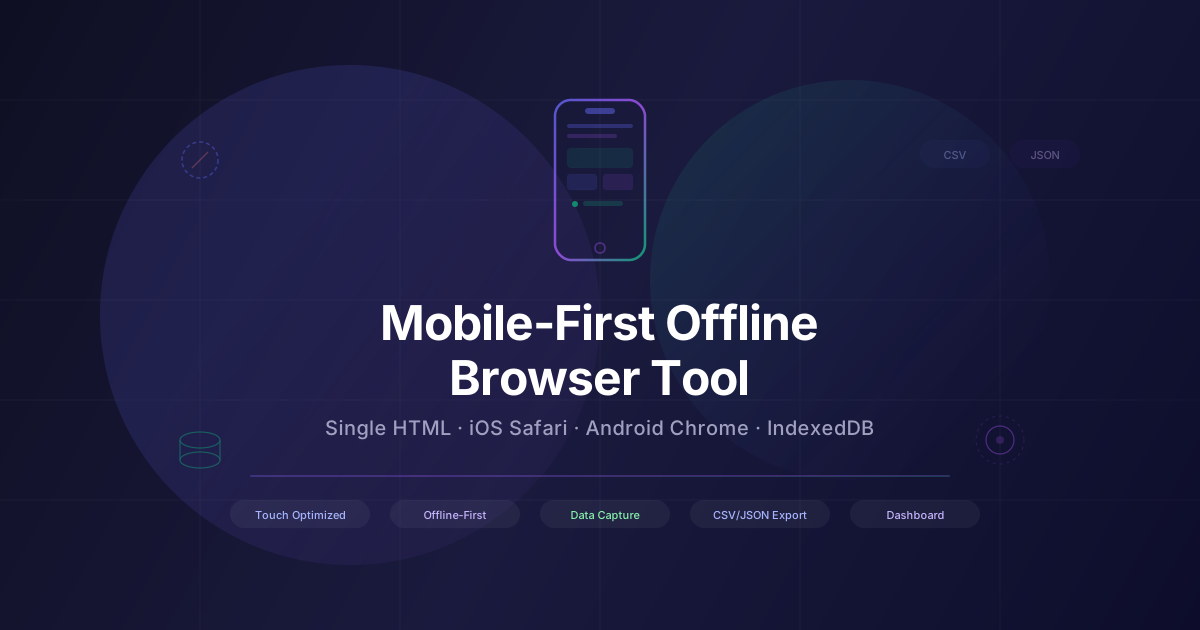
The requirements were deceptively simple on paper: a single self-contained HTML file, touch-optimized for iOS Safari and Android Chrome, with data capture, session management, CSV and JSON export, and a clean dashboard summary. In practice, building something that feels native on both platforms — without a framework, without a build pipeline, without a server — requires solving a specific set of cross-platform problems that most web developers only encounter once they're already deep in the project.
This post covers the full technical approach: how we structured the file, the iOS Safari and Android Chrome quirks we hit and fixed, how offline data persistence and export work, and how we designed the UI for real-world field use. If you have a similar project, this is the guide we wish existed before we started.
What's covered in this guide
- The client brief and why a single HTML file was the right call
- Architecture of a self-contained offline browser tool
- iOS Safari touch issues we hit and exactly how we fixed them
- Android Chrome differences and cross-platform parity
- Offline data persistence: localStorage, sessionStorage, and IndexedDB
- CSV and JSON export without a server
- Building the dashboard summary view
- Performance on low-end devices
- Testing on physical devices (not simulators)
- What Phase 2 looks like
- How Lushbinary can build this for you
1The Client Brief and Why a Single HTML File Was the Right Call
The client operates in a specialized industry where professionals work in the field — on job sites, in warehouses, in environments where pulling out a laptop is impractical and internet connectivity is unreliable or nonexistent. They needed a tool that could be handed to a team member on a tablet, opened immediately, and used without any setup, login, or connection.
The instinct for many developers is to reach for a Progressive Web App (PWA) with a service worker. PWAs are a solid choice when you control the distribution channel and can guarantee the user visits the URL at least once while online. But this client needed something that could be distributed via email, AirDrop, USB, or a shared drive — and work the first time it was opened, even if the device had never been online with that file.
A single self-contained HTML file solves this cleanly. All CSS is inlined in a <style> block. All JavaScript is inlined in <script> tags. No external fonts, no CDN dependencies, no fetch calls. The file is the app. Open it in Safari or Chrome and it runs. This approach also has a meaningful security advantage: there is no server to compromise, no API keys to leak, and no network traffic to intercept.
2Architecture of a Self-Contained Offline Browser Tool
The file structure follows a clear separation of concerns inside a single document. The <head> contains all CSS variables, reset styles, component styles, and dark mode overrides. The <body> contains the HTML shell with a single-page app router pattern driven by JavaScript — no URL changes, just DOM swapping between views.
<!DOCTYPE html>
<html lang="en">
<head>
  <meta charset="UTF-8" />
  <meta name="viewport" content="width=device-width, initial-scale=1, viewport-fit=cover" />
  <style>
    /* All styles inlined here */
    :root { --primary: #6366f1; --bg: #fff; }
    @media (prefers-color-scheme: dark) { :root { --bg: #0f0f0f; } }
  </style>
</head>
<body>
  <div id="app">
    <div id="view-dashboard" class="view active"></div>
    <div id="view-capture" class="view"></div>
    <div id="view-session" class="view"></div>
  </div>
  <script>
    // All app logic inlined here
    // Router, data layer, UI components
  </script>
</body>
</html>
The JavaScript layer is split into three logical modules inside the single script block: the data layer (read/write to localStorage and IndexedDB), the UI layer (DOM manipulation, event binding, form handling), and the router (view switching, back navigation, state management). No framework. No build step. Vanilla JS with modern ES6+ syntax, which is fully supported in iOS Safari 15.4+ and Chrome 100+.
For icons, we used inline SVG strings rather than an icon font or external sprite sheet. This keeps the file fully self-contained and avoids the FOUT (flash of unstyled text) that icon fonts can cause on first render.
3iOS Safari Touch Issues We Hit and Exactly How We Fixed Them
iOS Safari is the most restrictive mobile browser environment and the one that causes the most surprises. Here are the specific issues we encountered and the exact fixes applied.
1. 300ms tap delay
iOS Safari historically adds a 300ms delay to tap events to detect double-taps. On a data-entry tool where users tap dozens of times per session, this makes the app feel sluggish. The fix is a single CSS rule applied globally:
* { touch-action: manipulation; }This tells the browser not to wait for a double-tap gesture, removing the delay entirely. No JavaScript library needed.
2. Input zoom on focus
When a text input has a font size smaller than 16px, iOS Safari automatically zooms the viewport on focus. This breaks the layout and disorients the user. The fix is to ensure all inputs use at least 16px:
input, select, textarea {
  font-size: 16px; /* Prevents iOS zoom on focus */
}
3. Scroll momentum inside overflow containers
Scrollable containers inside the app (like the session list and the dashboard table) did not have momentum scrolling on iOS — they felt stiff and unresponsive. The fix:
.scrollable {
  overflow-y: auto;
  -webkit-overflow-scrolling: touch; /* Momentum scroll on iOS */
}
4. Sticky hover states after tap
On iOS, tapping a button triggers its :hover state, which then stays active until the user taps elsewhere. This causes buttons to appear permanently highlighted. The fix is to only apply hover styles on devices that support a true hover (pointer devices):
@media (hover: hover) and (pointer: fine) {
  .btn:hover { background: var(--primary-dark); }
}
5. Safe area insets on notched iPhones
On iPhone models with a notch or Dynamic Island, fixed bottom navigation bars were being obscured. The fix uses CSS environment variables:
.bottom-nav {
  padding-bottom: calc(16px + env(safe-area-inset-bottom));
}

/* Also required in the viewport meta tag: */
/* <meta name="viewport" content="..., viewport-fit=cover" /> */
Physical device testing is non-negotiable
None of these issues are reliably reproducible in browser DevTools device emulation. The 300ms delay, safe area insets, and scroll momentum behavior all require a real device. We test on physical iPhones and iPads running the latest iOS, and on Android phones running Chrome. Simulators are useful for layout checks but not for touch behavior.
4Android Chrome Differences and Cross-Platform Parity
Android Chrome is generally more permissive than iOS Safari, but it has its own set of quirks. The most significant differences we encountered:
| Issue | iOS Safari | Android Chrome |
|---|---|---|
| 300ms tap delay | Yes (fix: touch-action) | No (fixed in Chrome 32+) |
| Input zoom on focus | Yes (fix: font-size 16px) | No |
| Safe area insets | Yes (notch/Dynamic Island) | Varies by device |
| File download (export) | Share Sheet (iOS 13+) | Downloads folder |
| IndexedDB support | Full (iOS 15.4+) | Full |
| CSS backdrop-filter | Full support | Full support |
| Web Share API | Supported | Supported |
| -webkit-overflow-scrolling | Required for momentum | Ignored (not needed) |
The most important Android-specific consideration is the file download behavior. On Android Chrome, triggering a download via a Blob URL sends the file directly to the Downloads folder with a native notification. On iOS Safari, it opens the Share Sheet, which lets the user save to Files, AirDrop it, or open it in another app. Both work well — they just require slightly different UX copy to set user expectations correctly.
5Offline Data Persistence: localStorage, sessionStorage, and IndexedDB
The tool needed to persist data across page refreshes and browser restarts without any server. We used a layered approach:
- sessionStorage — for transient UI state (current view, active form values, unsaved draft). Cleared when the tab is closed.
- localStorage — for user preferences (theme, default values, last-used settings). Persists across sessions. Limit: ~5MB per origin.
- IndexedDB — for the full session and record dataset. Supports structured data, indexes, and transactions. Persists across sessions. Limit: typically 50% of available disk space on iOS 15.4+, effectively unlimited on Android Chrome.
For the IndexedDB layer, we wrote a thin promise-based wrapper to avoid callback hell. The pattern is straightforward:
// Open (or create) the database
function openDB() {
  return new Promise((resolve, reject) => {
    const req = indexedDB.open("FieldToolDB", 1);
    req.onupgradeneeded = (e) => {
      const db = e.target.result;
      db.createObjectStore("sessions", { keyPath: "id", autoIncrement: true });
      db.createObjectStore("records", { keyPath: "id", autoIncrement: true });
    };
    req.onsuccess = () => resolve(req.result);
    req.onerror = () => reject(req.error);
  });
}

// Save a record
async function saveRecord(data) {
  const db = await openDB();
  return new Promise((resolve, reject) => {
    const tx = db.transaction("records", "readwrite");
    tx.objectStore("records").add({ ...data, createdAt: Date.now() });
    tx.oncomplete = resolve;
    tx.onerror = () => reject(tx.error);
  });
}

// Get all records
async function getAllRecords() {
  const db = await openDB();
  return new Promise((resolve, reject) => {
    const tx = db.transaction("records", "readonly");
    const req = tx.objectStore("records").getAll();
    req.onsuccess = () => resolve(req.result);
    req.onerror = () => reject(req.error);
  });
}6CSV and JSON Export Without a Server
Data export is handled entirely client-side using the Blob API. No server, no upload, no email. The user taps "Export" and the file downloads immediately.
function exportCSV(records) {
  const headers = ["id", "timestamp", "field1", "field2", "notes"];
  const rows = records.map((r) =>
    headers.map((h) => JSON.stringify(r[h] ?? "")).join(",")
  );
  const csv = [headers.join(","), ...rows].join("\n");
  downloadFile(csv, "session-export.csv", "text/csv");
}

function exportJSON(records) {
  const json = JSON.stringify(records, null, 2);
  downloadFile(json, "session-export.json", "application/json");
}

function downloadFile(content, filename, mimeType) {
  const blob = new Blob([content], { type: mimeType });
  const url = URL.createObjectURL(blob);
  const a = document.createElement("a");
  a.href = url;
  a.download = filename;
  a.click();
  URL.revokeObjectURL(url); // Clean up memory
}
On iOS Safari, this triggers the Share Sheet. The user can save the file to the Files app, open it in Numbers, or share it via AirDrop or email. On Android Chrome, the file goes directly to the Downloads folder. Both behaviors are native and require no additional libraries.
iOS Safari file naming caveat
On iOS Safari versions prior to 16.4, the download attribute on anchor tags was ignored for Blob URLs — the file would open in the browser instead of downloading. The workaround is to detect iOS and use the Web Share API as a fallback: navigator.share({ files: [file] }). iOS 16.4+ supports the download attribute correctly.
7Building the Dashboard Summary View
The dashboard is the first screen the user sees when they open the tool. It shows a summary of the current session: record count, key metrics, and a scrollable list of recent entries. The design requirements were clean, professional, and readable in direct sunlight (high contrast, large text, no thin fonts).
We used CSS Grid for the summary cards and a flexbox list for the recent entries. The layout adapts from a single-column phone view to a two-column tablet view using a single breakpoint at 640px. No media query framework — just two CSS rules.
The dashboard also includes a "clear session" action that wipes the current session from IndexedDB after confirming with the user. This is important for tools used by multiple people on a shared device — the next user starts with a clean slate without needing to reinstall or reset anything.
8Performance on Low-End Devices
Field tools are often used on older tablets or budget Android phones. We optimized for performance from the start rather than retrofitting it later. The key decisions:
- No framework overhead. Vanilla JS with direct DOM manipulation is faster than any virtual DOM on low-end hardware. First meaningful paint is under 200ms on a 2019 iPad.
- Debounced input handlers. Search and filter inputs use a 150ms debounce to avoid re-rendering the list on every keystroke.
- Virtual scrolling for large lists. When the session record count exceeds 200 items, we switch to a virtual scroll implementation that only renders the visible rows plus a small buffer. This keeps the DOM lean and scroll performance smooth.
- CSS transitions over JavaScript animations. All view transitions use CSS
opacityandtransformwithwill-change: transformto keep animations on the GPU compositor thread. - Lazy IndexedDB reads. The dashboard summary uses aggregated counts stored in localStorage (updated on every write) rather than querying IndexedDB on every render. Full data is only loaded when the user opens the session list view.
The final file size came in under 180KB uncompressed — small enough to share via email without hitting attachment limits, and fast enough to parse and execute in under 300ms on a 2018-era Android device.
9Testing on Physical Devices (Not Simulators)
We test on physical devices. This is not optional for a project like this. The specific issues we caught on device that were invisible in DevTools:
- The 300ms tap delay was only noticeable on a real device under normal use — in DevTools it felt fine because mouse clicks have no delay.
- Safe area insets on an iPhone 15 Pro (Dynamic Island) caused the bottom nav to be partially obscured. DevTools device emulation did not replicate this correctly.
- IndexedDB write performance on a 2020 iPad Air was noticeably slower than on desktop — we added a loading indicator for write operations that take more than 100ms.
- The iOS Share Sheet behavior for file downloads was only testable on a real device. The simulator does not show the Share Sheet.
- Keyboard avoidance (the viewport shifting when the software keyboard opens) behaved differently on iOS vs Android and required separate handling for each.
Our test matrix for this project: iPhone 15 Pro (iOS 18), iPhone 12 (iOS 17), iPad Air 5th gen (iPadOS 17), Samsung Galaxy S23 (Android 14 / Chrome 124), and a budget Android tablet (Android 12 / Chrome 120). Every release is tested on all five before delivery.
10What Phase 2 Looks Like
Phase 1 delivered a fully functional offline tool. Phase 2 is where the tool grows into a connected platform — when the client is ready for it. The natural evolution path:
Cloud sync
Add a lightweight sync layer that uploads session data to an API when the device comes online. The offline-first architecture makes this straightforward — the local data store is the source of truth, and sync is additive.
Multi-user support
Add user identification (even just a name field) to session records, and a simple admin view that aggregates data across users. No auth system required for Phase 2 — just a shared export destination.
PWA upgrade
Wrap the existing HTML file in a service worker and web app manifest to enable Add to Home Screen, push notifications, and background sync. The core logic requires zero changes.
Native app
If the client needs camera access, Bluetooth, or deeper OS integration, the existing HTML/JS logic can be wrapped in a React Native WebView or converted to a native app with minimal rework.
11How Lushbinary Can Build This for You
If you have a similar brief — a specialized tool for field professionals, a data capture app for a specific workflow, or any mobile-first browser tool that needs to work offline — this is exactly the kind of project we take on.
We handle the full build: requirements, architecture, UI design, development, and physical device testing. We work directly with you (no outsourcing, no handoffs to a third party), and we deliver production-ready code that you own completely.
What you get from Lushbinary on a project like this:
- A single self-contained HTML file that runs offline in iOS Safari and Android Chrome with no app install required
- Touch-optimized UI tested on physical iPhones, iPads, and Android devices — not simulators
- Data capture forms, session management, and structured local storage using IndexedDB
- One-tap CSV and JSON export that works natively on both platforms
- A clean dashboard summary view with real-time aggregation
- Clean, documented code that your team can maintain and extend
- A Phase 2 roadmap if you want to add cloud sync, multi-user support, or a native app wrapper later
We've built tools like this for clients in logistics, field services, healthcare, and specialized trades. The pattern is proven. The timeline for a Phase 1 build is typically 2-4 weeks depending on the complexity of your data model and the number of screens.
Free consultation — no commitment
Tell us about your tool. We'll ask the right questions, give you an honest assessment of scope and timeline, and answer the three questions your client asked: what mobile touch issues we've solved, whether we test on physical devices, and whether we do the work ourselves. The answer to all three is in this article.
❓ Frequently Asked Questions
Can a single HTML file really work offline on iOS Safari and Android Chrome?
Yes. A self-contained HTML file that bundles all CSS, JavaScript, and assets inline can run fully offline in any modern mobile browser. No service worker or app install is required. The file is opened once (via email, AirDrop, or a local server) and then works without any internet connection.
What are the most common touch issues on iOS Safari and how do you fix them?
The top issues are: 300ms tap delay (fixed with touch-action: manipulation), scroll momentum not working inside overflow containers (fixed with -webkit-overflow-scrolling: touch), input zoom on focus (fixed by setting font-size: 16px on inputs), and sticky hover states after tap (fixed by using pointer: coarse media queries).
How do you export data to CSV and JSON from a browser-only tool?
Data export is handled entirely client-side using the Blob API and a dynamically created anchor tag with a download attribute. Both CSV and JSON exports trigger a native file download dialog on iOS Safari (Share Sheet) and Android Chrome (Downloads folder) without any server.
How is session data persisted without a server or internet connection?
localStorage and sessionStorage handle lightweight key-value persistence. For larger structured datasets, IndexedDB provides a full client-side database that survives page refreshes and browser restarts. Both APIs are available in iOS Safari 15.4+ and all modern Android Chrome versions.
How long does it take to build a mobile-first offline browser tool?
A Phase 1 build covering offline operation, touch-optimized UI, data capture, session management, CSV/JSON export, and a dashboard summary typically takes 2-4 weeks depending on the complexity of the data model and the number of interactive screens.
Sources & References
- Apple Safari Release Notes — iOS Safari feature support and known issues
- Chrome for Android Developer Documentation — Android Chrome APIs and behavior
- MDN IndexedDB API — IndexedDB specification and browser support
- MDN Blob API — Client-side file generation and download
- Can I Use — IndexedDB — Browser compatibility data
Content was rephrased for compliance with licensing restrictions. Technical specifications sourced from official browser documentation as of March 2026. Browser behavior may change — always verify against the latest release notes.
Need a Mobile-First Offline Tool Built?
Tell us about your project. We build touch-optimized, offline-capable browser tools for field professionals — tested on physical iOS and Android devices, delivered in 2-4 weeks.
Build Smarter, Launch Faster.
Book a free strategy call and explore how LushBinary can turn your vision into reality.