
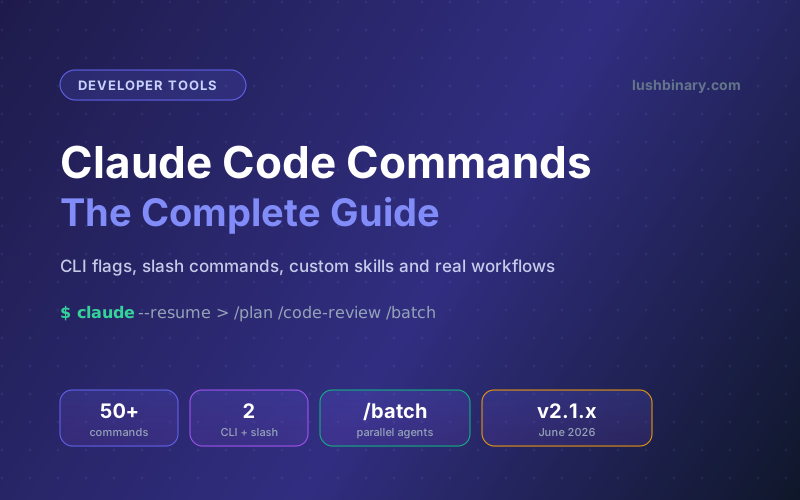
Claude Code is an agentic coding tool that lives in your terminal, reads your codebase, edits files, and runs commands on your behalf. The thing that separates a casual user from a power user is not the model. It is knowing the commands that steer it. The right command at the right moment switches models, recovers from a bad turn, fans work out across a dozen background agents, or ships a reviewed pull request without you touching the keyboard much.
There are two families to learn. CLI commands and flags run in your shell when you start Claude Code (think claude -p, claude --resume, claude --model). Slash commands run inside a live session and start with a forward slash (think /clear, /compact, /code-review). This guide walks through the commands that matter day to day, with copy-paste examples for each, and ends with real workflows that chain them together.
Everything here is based on the official Claude Code reference as of June 2026 (Claude Code v2.1.x). Availability of a few commands depends on your platform, plan, and environment, so if a command in this guide does not appear when you type /, that is expected and noted where relevant.
📋 Table of Contents
- 1.How Claude Code Commands Work
- 2.Starting, Piping & Resuming Sessions (CLI)
- 3.The Daily Drivers: Context & Model Control
- 4.Reviewing & Shipping Code Safely
- 5.Parallel & Background Work
- 6.Recovering & Debugging a Session
- 7.Custom Commands & Skills (Build Your Own)
- 8.Permissions, MCP & Configuration
- 9.Power-User Workflows That Chain Commands
- 10.Why Lushbinary for AI-Powered Development
1How Claude Code Commands Work
A slash command is only recognized at the start of your message. Type / to open the menu of every command available to you, or type / followed by a few letters to filter. Anything you type after the command name is passed to it as arguments, so /plan fix the auth bug enters plan mode and immediately seeds it with that task.
CLI flags work the other way around. You set them when you launch Claude from your shell, and they configure the session before it starts. The two families overlap on purpose: you can launch with claude --model opus or switch later with /model; you can start in plan mode with claude --permission-mode plan or drop into it later with /plan.
Good to know: claude --help does not list every flag, so a flag missing from the help output does not mean it is unavailable. The full reference lives in the official CLI docs. Also, not every slash command shows for every user. For example, /desktop only appears on macOS and Windows with a Claude subscription, and /upgrade only shows on Pro and Max plans.
2Starting, Piping & Resuming Sessions (CLI)
These are the terminal commands you reach for before a session even begins. The most useful trick here is -p (print mode), which runs a query and exits, making Claude Code scriptable and pipeable like any other Unix tool.
# Starting and scripting sessions
# Interactive session in the current repo
claude

# Start with an initial prompt
claude "explain what this project does"

# One-shot query via the SDK, then exit (great for scripts)
claude -p "summarize the changes in the last commit"

# Pipe content straight into Claude Code
cat error.log | claude -p "what is causing these errors?"

# Continue the most recent conversation in this directory
claude -c

# Continue non-interactively (CI-friendly)
claude -c -p "check for type errors and list them"

# Resume a specific session by name or ID
claude -r "auth-refactor" "finish wiring up the login form"
Naming sessions pays off fast. Launch with -n to label a session so you can find it later in the /resume picker and in your terminal title.
# Naming, resuming, and forking
# Give the session a memorable name
claude -n "payment-webhooks"

# Open the interactive session picker
claude --resume

# Resume but fork into a new session ID (keeps the original intact)
claude --resume payment-webhooks --fork-session

# Resume sessions linked to a pull request
claude --from-pr 1423

# Update to the latest version
claude update
Print-mode budget guards: when you run Claude Code in scripts, cap the blast radius with --max-turns 3 to limit agentic turns and --max-budget-usd 5.00 to stop before a dollar ceiling. Both apply to -p print mode and are the cheapest insurance you can buy in CI.
3The Daily Drivers: Context & Model Control
These are the slash commands you will use in almost every session. Master these five and most of Claude Code clicks into place.
| Command | What it does |
|---|---|
| /init | Generate a starter CLAUDE.md so Claude understands your project conventions. |
| /clear | Start a fresh conversation with empty context. Project memory is kept; the old chat stays in /resume. |
| /compact | Summarize the current conversation to free context while continuing the same task. |
| /context | Visualize where the context window is going as a colored grid, with optimization hints. |
| /model | Switch the model and save it as your default for new sessions. |
| /effort | Set the reasoning effort level (low, medium, high, xhigh, max). |
| /plan | Enter plan mode before a large change. Pass a description to seed it. |
The most common mistake new users make is treating /clear and /compact as the same thing. They are not. Use this rule of thumb:
🧹 Use /clear when
You are switching to a different, unrelated task. It wipes the conversation so stale context cannot leak into the new work, while keeping your CLAUDE.md project memory. Pass a name like /clear billing-bug to label the old chat in the resume picker.
🗜️ Use /compact when
You want to keep going on the same task but the window is filling up. It summarizes the history so far. You can focus the summary: /compact keep the API contract decisions tells it what to preserve.
For model and effort, the interactive pickers are worth knowing. Running /model with no argument opens a picker; press s on a row to switch for the current session only without changing your default. Running /effort with no argument opens a slider you nudge with the arrow keys. Both take effect immediately without waiting for the current response to finish.
// Tuning the model and reasoning depth
> /model opus            # switch to Opus and make it the default
> /effort high           # spend more reasoning on a hard problem
> /effort low            # save tokens on a trivial change
> /context               # see what is eating the context window
> /compact focus on the database migration plan
> /plan refactor the payment module to use Stripe webhooks
Quick aside without bloat: use /btw to ask a one-off side question that should not be added to the conversation history. It is perfect for "what does this flag do again?" moments that would otherwise pollute your task context.
4Reviewing & Shipping Code Safely
Before you ship, Claude Code gives you a layered set of review commands. Think of them as moving from cheap and local to deep and thorough. Start with a diff, run a review, then escalate only if the change warrants it.
/diffopens an interactive diff viewer for uncommitted changes and per-turn diffs. Use left and right arrows to switch between the git diff and individual Claude turns, up and down to browse files./code-reviewis a bundled skill that scans the current diff for correctness bugs plus reuse, simplification, and efficiency cleanups. Pass--fixto apply the findings to your working tree, or--commentto post them as inline GitHub PR comments./code-review ultraruns a deep multi-agent review in the cloud (also reachable as/ultrareview)./simplifyruns a cleanup-only review (reuse, simplification, efficiency, right level of abstraction) and applies the fixes, without hunting for correctness bugs./security-reviewanalyzes pending changes on the branch for vulnerabilities like injection, auth issues, and data exposure./reviewreviews a pull request locally in your current session.
// A typical pre-ship sequence
> /diff                       # eyeball what changed
> /code-review                # find bugs and cleanup opportunities
> /code-review high --fix     # higher effort, auto-apply the findings
> /security-review            # check for injection, auth, data exposure
> /code-review ultra          # deep cloud review for a risky change
A note on --fix
/code-review --fix edits your working tree directly. Run it on a clean branch with your changes committed or stashed so you can cleanly review (and revert) what the review applies. Treat it like accepting a teammate's patch: read the diff before you commit.
5Parallel & Background Work
This is where Claude Code stops feeling like a chat box and starts feeling like an orchestration layer. These commands let you run work you are not actively watching, and split large changes across many agents at once.
| Command | Use it to |
|---|---|
| /agents | Manage the subagents Claude can delegate side tasks to. |
| /tasks | List and manage background tasks running in the current session (also /bashes). |
| /background | Detach the whole session to run as a background agent and free your terminal. Alias /bg. |
| /batch | Skill: decompose a large change into 5-30 independent units, each run in its own git worktree with its own PR. |
| /goal | Set a condition Claude keeps working toward across turns until it is met. |
| /loop | Skill: run a prompt repeatedly while the session stays open (e.g. poll a deploy). |
The standout here is /batch. Hand it a codebase-wide instruction and it researches the repo, breaks the work into independent units, shows you a plan, and (once approved) spawns one background subagent per unit in an isolated git worktree. Each subagent implements its slice, runs tests, and opens a pull request. It requires a git repository.
// Fanning out and detaching
# Large-scale parallel migration, one PR per unit
> /batch migrate src/ from class components to React hooks

# Keep working toward a condition across turns
> /goal all integration tests pass and the build is green

# Poll a long-running job without babysitting it
> /loop 5m check if the staging deploy finished

# Detach the session and keep it running in the background
> /background finish the test suite and open a PR
From the shell side, the claude agents command opens a view to monitor and dispatch these parallel background sessions, and claude logs <id> prints recent output from any of them. You can also start a session directly in an isolated worktree:
# Worktrees and background monitoring from the shell
# Start in an isolated git worktree (keeps your main checkout clean)
claude -w feature-auth

# Monitor all background sessions
claude agents

# Tail the output of one background session
claude logs 7c5dcf5d

# Start a session as a background agent and return immediately
claude --bg "investigate the flaky checkout test"
6Recovering & Debugging a Session
Things go sideways. A turn takes a wrong approach, an install breaks, or the model heads down a path you do not want. These commands pull you back.
/rewind
Roll the conversation and/or code back to a previous checkpoint, or summarize from a selected message. Aliases: /checkpoint, /undo. This is your undo button for an entire turn, including file edits.
/doctor
Diagnose and verify your Claude Code installation and settings. Press f to have Claude fix any reported issues automatically.
/debug
Skill: enable debug logging for the session and troubleshoot by reading the debug log. Describe the issue to focus the analysis.
/feedback
Report a bug with your session context attached, so the team can see what happened. Aliases: /bug, /share.
The one to internalize is /rewind. Because Claude Code checkpoints both the conversation and your code, you can undo a bad turn including the file edits it made, then re-prompt with better instructions. It is far safer than letting the agent dig itself deeper, and it pairs naturally with plan mode: plan, execute, and if the result is wrong, rewind and adjust the plan.
// Recover and diagnose
> /rewind                 # roll code + conversation to a checkpoint
> /doctor                 # check the install, press f to auto-fix
> /debug the file watcher stops picking up changes after a while
> /release-notes          # see what changed in recent versions
7Custom Commands & Skills (Build Your Own)
The biggest unlock is writing your own commands. In current Claude Code, custom commands have been merged into skills. A file at .claude/commands/deploy.md and a skill at .claude/skills/deploy/SKILL.md both create the /deploy command and work the same way. Your existing .claude/commands/ files keep working; skills just add more features.
Create a skill when you keep pasting the same checklist or multi-step procedure into chat. The directory name becomes the command you type, and the description helps Claude decide when to load it automatically. Here is a complete example that summarizes your uncommitted changes and flags anything risky:
# ~/.claude/skills/summarize-changes/SKILL.md
---
description: Summarizes uncommitted changes and flags anything
  risky. Use when the user asks what changed or wants a commit message.
---

## Current changes

!`git diff HEAD`

## Instructions

Summarize the changes above in two or three bullet points, then
list any risks such as missing error handling, hardcoded values,
or tests that need updating. If the diff is empty, say so.
Two things make skills powerful. The backtick-bang syntax (!`command`) runs a shell command before Claude sees the prompt and inlines its output, so the model gets your actual live data instead of guessing. And $ARGUMENTS (or $0, $1 for positional args) captures whatever you type after the command name.
# A deploy command only YOU can trigger
---
name: deploy
description: Deploy the application to production
disable-model-invocation: true
allowed-tools: Bash(git push *) Bash(npm run *)
---

Deploy $ARGUMENTS to production:

1. Run the test suite
2. Build the application
3. Push to the deployment target
4. Verify the deployment succeeded
Note disable-model-invocation: true. That frontmatter means only you can trigger the skill with /deploy; Claude will not decide to deploy on its own because your code looks ready. Use it for anything with side effects. The opposite, user-invocable: false, hides a skill from the menu so only Claude loads it as background knowledge.
Where skills live: put them in ~/.claude/skills/ for all your projects, or .claude/skills/ in a repo for that project only (commit it so your whole team gets the command). After adding or editing a skill mid-session, run /reload-skills to pick it up without restarting.
8Permissions, MCP & Configuration
These commands control what Claude Code is allowed to do, what tools it can reach, and how it behaves. They matter most on shared repos and in automated pipelines.
| Command / Flag | Purpose |
|---|---|
| /permissions | Manage allow, ask, and deny rules for tool permissions in an interactive dialog. Alias: /allowed-tools. |
| /mcp | Manage Model Context Protocol server connections and OAuth authentication. |
| /agents | Create and manage subagent configurations for the project. |
| /memory | Edit CLAUDE.md memory files and manage auto-memory entries. |
| /config | Open Settings to adjust theme, model, output style, and more. Alias: /settings. |
| /hooks | View hook configurations that fire on tool events. |
| --permission-mode | Launch flag: start in default, acceptEdits, plan, auto, dontAsk, or bypassPermissions. |
Permission rules use a clear syntax. Bash(git log *) allows any git log call without prompting, Read allows the read tool outright, and a scoped deny like Bash(rm *) leaves the tool available but blocks matching calls. You can set these interactively with /permissions or pass them at launch.
# Permissions and MCP from the shell
# Pre-approve safe read-only tools, deny destructive ones
claude --allowedTools "Bash(git log *)" "Bash(git diff *)" "Read" \
       --disallowedTools "Bash(rm *)"

# Start in plan mode so nothing is edited until you approve a plan
claude --permission-mode plan

# Load MCP servers from a config file, ignoring all others
claude --strict-mcp-config --mcp-config ./mcp.json

# Append a house rule to the system prompt for this run
claude --append-system-prompt "Always use TypeScript and write tests"
Handle --dangerously-skip-permissions with care
The --dangerously-skip-permissions flag (equivalent to --permission-mode bypassPermissions) skips permission prompts entirely. It is useful in a sandboxed CI container you fully control, but never run it against a machine with credentials, production access, or data you cannot afford to lose. Prefer a scoped allowlist with --allowedTools instead.
9Power-User Workflows That Chain Commands
Individual commands are useful. Chaining them is where the real productivity lives. Here are four workflows that map to common engineering tasks.
Workflow 1: Onboard to an unfamiliar repo
claude                          # open a session in the repo
> /init                         # generate a starter CLAUDE.md
> /memory                       # refine the project memory
> /mcp                          # wire up any servers the repo needs
> /permissions                  # set approval rules before any edits
Workflow 2: Plan, build, and recover safely
> /plan add rate limiting to the public API
  # review the plan, then let it execute
> /context                      # watch the window if the task is long
> /compact focus on the rate-limit design decisions
  # if a turn goes wrong:
> /rewind                       # undo the code + conversation, re-prompt
Workflow 3: Review and ship a pull request
> /diff                         # see the full set of changes
> /code-review high --fix       # find and apply bug + cleanup fixes
> /security-review              # last pass for vulnerabilities
  # then ask Claude to commit and open the PR, or use a custom /ship skill
Workflow 4: Large migration across the codebase
> /batch migrate all API routes from Express to Fastify
  # approve the decomposed plan; each unit runs in its own worktree
$ claude agents                 # monitor the parallel sessions
$ claude logs <id>              # tail any unit that looks stuck
  # each unit opens its own PR when its tests pass
The pattern across all four: use plan mode and reviews to stay in control, use context commands to keep sessions healthy, and reach for background and batch commands only when the work is genuinely parallel. Resist the urge to fan out a task that is really sequential; the coordination overhead is not worth it.
10Why Lushbinary for AI-Powered Development
Knowing the commands is step one. Building a development process around them, with the right guardrails, custom skills, and team conventions, is where teams actually capture the productivity gains. That is what we do at Lushbinary.
Custom Skills & Commands
We build project-specific skills for your repos - deploy flows, review checklists, codegen - so your team gets repeatable, safe commands instead of pasting prompts.
Permissions & Guardrails
We design allow/deny rule sets and hooks so AI agents move fast on safe operations and stop hard on destructive ones, in both local and CI environments.
MCP Integration
Custom MCP servers that connect Claude Code to your internal tools, databases, and APIs, turning your stack into first-class agent capabilities.
AI Workflow Adoption
From Claude Code to Cursor to Kiro, we set up AI-assisted pipelines that fit your existing CI/CD and review processes, not the other way around.
If your team is adopting Claude Code or any agentic coding tool, we can help you go from "a few people use it" to a documented, guardrailed workflow the whole team trusts. See our guide to Claude Code Agent Teams for the next step in multi-agent development.
🚀 Ready to build a Claude Code workflow your team actually trusts? Get a free 30-minute consultation. We'll review your current setup and recommend custom skills, permission rules, and MCP integrations tailored to your stack.
❓ Frequently Asked Questions
What are Claude Code commands?
Claude Code has two kinds of commands. CLI commands and flags run in your terminal when you launch Claude, like claude -p for a one-shot query or claude --resume to reopen a session. Slash commands run inside a session and start with a forward slash, like /clear, /model, /compact, and /code-review. Type / to see every command available to you in the current session.
What is the difference between a slash command and a CLI flag in Claude Code?
A CLI flag is set when you launch Claude Code from the shell and configures the whole session, for example claude --model opus --permission-mode plan. A slash command is typed during a running session to change behavior on the fly, for example /model to switch models or /plan to enter plan mode mid-task. Many capabilities are available both ways.
How do I create a custom command in Claude Code?
Custom commands are now skills. Create a directory at .claude/skills/<name>/ with a SKILL.md file, or a single file at .claude/commands/<name>.md. The name becomes the command, so .claude/skills/deploy/SKILL.md creates /deploy. Add YAML frontmatter with a description, use $ARGUMENTS to capture input, and use the backtick-bang syntax to inject live command output before Claude sees the prompt.
What is the difference between /clear and /compact in Claude Code?
/clear starts a brand new conversation with empty context while keeping project memory, which is best when you switch to an unrelated task. /compact keeps the current conversation but summarizes it to free up context, which is best when you want to continue the same task but the window is getting full. The previous conversation after /clear stays available in /resume.
How do I review code before shipping with Claude Code?
Use /diff to inspect uncommitted changes, /code-review to scan the diff for correctness bugs and cleanups (add --fix to apply findings), and /security-review to analyze the branch for vulnerabilities like injection and auth issues. For a deeper multi-agent pass in the cloud, run /code-review ultra. /review checks a pull request locally.
How do I run tasks in parallel in Claude Code?
Use /agents to manage subagents Claude can delegate side tasks to, /tasks to list background tasks in the session, and /background to detach the whole session so it keeps running while freeing your terminal. For codebase-wide changes, /batch decomposes the work into independent units and runs each in its own git worktree with its own subagent and pull request.
📚 Sources
- Claude Code Docs - Commands reference (built-in commands and bundled skills)
- Claude Code Docs - CLI reference (commands and flags)
- Claude Code Docs - Extend Claude with skills (custom commands)
- Anthropic - Claude Code product page
Content was rephrased for compliance with licensing restrictions. Command behavior and availability sourced from the official Claude Code documentation as of June 2026 (Claude Code v2.1.x). Commands and flags may change between versions, so always verify against the current docs.
Turn Claude Code Into a Team Superpower
Let Lushbinary help you build custom skills, permission guardrails, and MCP integrations so your team ships faster with AI-assisted development. From setup to scale, we've got you.
Ready to Build Something Great?
Get a free 30-minute strategy call. We'll map out your project, timeline, and tech stack - no strings attached.
Prefer email? Reach us directly: