
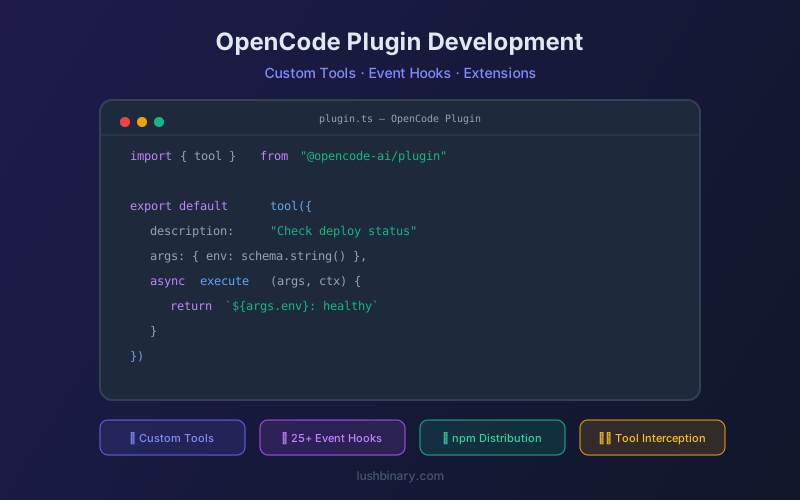
OpenCode's plugin system is what separates it from every other AI coding tool. While Claude Code and Cursor offer limited extensibility, OpenCode lets you hook into 25+ lifecycle events, add custom tools the AI can call, intercept tool execution, and modify runtime behavior - all with TypeScript.
Whether you want to add a custom linting tool, integrate with your company's internal APIs, enforce coding standards automatically, or build a completely custom AI workflow, the plugin system gives you full control.
This guide covers the plugin API, custom tool creation, event hooks, npm distribution, and real-world plugin examples you can adapt for your own projects.
📑 What This Guide Covers
- Plugin System Overview
- Creating Your First Plugin
- Custom Tools with tool()
- Event Hooks & Lifecycle
- Plugin Context & SDK
- Intercepting Tool Execution
- Publishing Plugins to npm
- Real-World Plugin Examples
- Plugin Security Considerations
- Lushbinary Plugin Development
1Plugin System Overview
OpenCode plugins are TypeScript or JavaScript modules that export a function receiving a context object and returning hooks. There are two ways to load plugins:
- Local files: Place
.tsor.jsfiles in.opencode/plugins/(project-level) or~/.config/opencode/plugins/(global). Loaded automatically at startup. - npm packages: Add package names to the
pluginarray inopencode.json. Installed automatically via Bun at startup.
// opencode.json
{
  "$schema": "https://opencode.ai/config.json",
  "plugin": [
    "opencode-helicone-session",
    "opencode-wakatime",
    "@my-org/custom-plugin"
  ]
}2Creating Your First Plugin
A minimal plugin that logs every message:
// .opencode/plugins/logger.ts
import type { PluginInput } from "@opencode-ai/plugin";

export default async function(input: PluginInput) {
  return {
    hooks: {
      "message.created": async (message) => {
        console.log(`[LOG] ${message.role}: ${message.content}`);
      },
    },
  };
}
Save this file and restart OpenCode. The plugin loads automatically and logs every message to the console. The PluginInput type provides access to the project context, client, shell, and working directory.
3Custom Tools with tool()
Custom tools are the simplest way to extend OpenCode. Place a file in .opencode/tool/ and the filename becomes the tool name:
// .opencode/tool/deploy_status.ts
import { tool } from "@opencode-ai/plugin";

export default tool({
  description: "Check deployment status for an environment",
  args: {
    environment: tool.schema
      .string()
      .describe("Target environment: staging or production"),
  },
  async execute(args, context) {
    const res = await fetch(
      `https://api.yourcompany.com/deploy/${args.environment}`
    );
    const data = await res.json();
    return `${args.environment}: ${data.status} (v${data.version})`;
  },
});
Now the AI can call deploy_status when you ask "what's the status of staging?" You can also export multiple tools from one file - named exports become filename_exportname.
💡 Tools vs MCP Servers
Custom tools run inside the OpenCode process and have access to the full plugin context. MCP servers run as separate processes and communicate via protocol. Use custom tools for simple integrations and MCP servers for complex, standalone services.
4Event Hooks & Lifecycle
OpenCode exposes 25+ lifecycle events that plugins can hook into. Key events include:
message.createdWhen a new message is added to the conversation
tool.callBefore a tool is executed
tool.resultAfter a tool returns a result
session.createdWhen a new session starts
session.endedWhen a session is closed
file.writtenAfter a file is created or modified
command.executedAfter a shell command runs
errorWhen an error occurs
Hooks can be synchronous or asynchronous. They receive the event data and can modify it, log it, or trigger side effects.
5Plugin Context & SDK
The PluginInput object provides rich context:
input.project- Project metadata (name, path, configuration)input.client- Internal SDK client for programmatic accessinput.$- BunShell instance for running commandsinput.directory- Project root directory pathinput.worktree- Git worktree path (if applicable)
6Intercepting Tool Execution
One of the most powerful plugin capabilities is intercepting tool calls before they execute. This enables access control, logging, and custom validation:
// .opencode/plugins/safety-guard.ts
export default async function(input) {
  return {
    hooks: {
      "tool.call": async (toolCall) => {
        // Block destructive commands
        if (toolCall.name === "bash" &&
            toolCall.args.command.includes("rm -rf")) {
          return {
            ...toolCall,
            blocked: true,
            reason: "Destructive command blocked by safety plugin",
          };
        }
        return toolCall;
      },
    },
  };
}7Publishing Plugins to npm
To share your plugin with the community:
- Create a new npm package with
@opencode-ai/pluginas a peer dependency - Export your plugin function as the default export
- Add
"opencode-plugin"to your package.json keywords - Publish to npm:
npm publish - Users add your package name to their
opencode.jsonplugin array
// package.json
{
  "name": "opencode-my-plugin",
  "version": "1.0.0",
  "main": "dist/index.js",
  "keywords": ["opencode-plugin"],
  "peerDependencies": {
    "@opencode-ai/plugin": "^1.0.0"
  }
}8Real-World Plugin Examples
Helicone Session Tracking
Tracks AI usage and costs per session. Sends metadata to Helicone for analytics dashboards.
WakaTime Integration
Logs AI coding time to WakaTime alongside your regular coding activity for unified productivity tracking.
Auto-Commit Plugin
Automatically creates git commits after successful AI edits with descriptive commit messages.
Code Review Gate
Intercepts file writes and runs ESLint/Prettier before allowing the AI to save changes.
Slack Notifier
Posts a summary to Slack when the AI completes a multi-step task or encounters an error.
Cost Tracker
Monitors token usage per session and alerts when spending exceeds a configurable threshold.
9Plugin Security Considerations
- Plugins run inside the OpenCode process with full access - audit third-party plugins before installing
- Use environment variables for secrets, never hardcode credentials in plugin code
- Scope plugin permissions to the minimum required (e.g., read-only file access)
- Pin npm plugin versions to avoid unexpected updates
- Local plugins in
.opencode/plugins/should be committed to version control for team review
10Lushbinary Plugin Development
Lushbinary builds custom OpenCode plugins for teams that need specialized AI workflows - from internal API integrations to automated code review pipelines and compliance enforcement tools.
🚀 Free Consultation
Need custom OpenCode plugins for your team's workflow? Lushbinary builds production-grade plugins that integrate with your internal tools, enforce coding standards, and automate repetitive tasks — no obligation.
❓ Frequently Asked Questions
Do I need to know TypeScript to build OpenCode plugins?
TypeScript is recommended but not required. Plugins can be written in plain JavaScript. The @opencode-ai/plugin SDK provides TypeScript types for better developer experience.
Can plugins access the file system?
Yes. Plugins run inside the OpenCode process and have full access to the file system, network, and shell. This is powerful but requires trust - always audit third-party plugins.
How do I debug a plugin?
Use console.log for basic debugging - output appears in the OpenCode terminal. For complex plugins, attach a debugger to the OpenCode process or use the BunShell for testing.
Can I use plugins with the OpenCode desktop app?
Yes. Plugins work across all OpenCode surfaces - TUI, CLI, desktop app, and IDE extensions. They're loaded by the server component that all clients connect to.
Are there any popular community plugins?
Yes. opencode-helicone-session (usage tracking), opencode-wakatime (productivity), and several community-built tools are available on npm. Check the OpenCode ecosystem page for a curated list.
📚 Sources
Content was rephrased for compliance with licensing restrictions. Plugin API details sourced from official OpenCode documentation as of April 2026. APIs may change - always verify on the official site.
Need Custom OpenCode Plugins?
Lushbinary builds production-grade OpenCode plugins for teams. Internal API integrations, code review gates, and custom AI workflows.
Ready to Build Something Great?
Get a free 30-minute strategy call. We'll map out your project, timeline, and tech stack - no strings attached.
Prefer email? Reach us directly: